Run your first flow
Push your package with axiom push, import its nodes into the canvas editor, connect them into a flow, and run it from the editor.
View as MarkdownThis tutorial takes the package you built in Write your first node and turns it into a running flow: push the package to the platform, import its nodes in the canvas editor, connect them, and run the flow — all without writing any infrastructure code.
Before you start
You need three things:
- A working package. Complete Write your first node
first — you should have a package directory containing an
axiom.yamlmanifest and at least one node that passesaxiom test. - A login session. Run
axiom loginonce;axiom pushrefuses to run without it. - A git remote. Your package directory must be a git repository with a
remote named
origin, and your current HEAD commit must be pushed to that remote. The platform builds your package from the remote repository, not from your local working tree — uncommitted or unpushed changes are not included.
Push your package to the platform
From your package directory, run:
# Run from your package directory (the one containing axiom.yaml).
axiom push
axiom push does three things:
- Validates the package locally. The same checks as
axiom validaterun first; blocking failures abort the push before anything is sent. - Builds and deploys on the platform. The CLI sends your repository URL and HEAD commit; the platform builds every node in the package and streams build progress back to your terminal.
- Prints your live endpoints. On success you get the package URL, a
POSTendpoint plus a ready-to-copycurlcommand for every node, and a link to the package's interactive API docs.
A pushed package is private to your tenant — it does not appear in the
public marketplace. You can push the same version repeatedly to iterate — each
re-push refreshes the code, descriptions, and OpenAPI spec. (Once a node is
deployed, its input/output wire signature is frozen for that version, so a
wire-signature change is rejected until you bump the version.) When you are
happy with it, promote it to a public, immutable marketplace release with
axiom publish:
axiom publish my-org/greeter@0.1.0axiom publish performs the private→public transition for a version you have
already pushed. Because a published version is immutable (it can never be
overwritten, only superseded by a new version), the command prompts for a
[y/N] confirmation before publishing. You can also publish from the Axiom UI.
For non-interactive use (CI), pass --yes (-y) to skip the confirmation
prompt — without it a scripted publish blocks waiting on stdin:
axiom publish my-org/greeter@0.1.0 --yesFor scripting, axiom push --json emits a single JSON result object instead
of human-readable progress. Full flag reference:
axiom push.
Create a flow in the canvas editor
Open the Axiom app in your browser and sign in — the canvas editor lives at
/editor on your deployment's app origin.
What is the app origin? It is the web host the editor and /console/*
pages hang off — distinct from the CLI's API endpoint. It is the deployment's
app URL (https://app.axiomide.com); the CLI already knows this value and
prints the editor URL for you after axiom push/axiom login. Open
https://app.axiomide.com/editor. Then:
- Choose File → New Flow.
- Enter a name in the New Flow dialog and click Create.
Save at any point with File → Save; a "Saved" confirmation appears when the flow is persisted.
Import your pushed package
Pushed nodes reach the canvas through the Marketplace panel:
- Click the Marketplace toggle (store icon) in the header to open the Marketplace panel.
- Open the filter dropdown and choose In Development. This lists the packages you have pushed — they are visible only to your tenant. If a fresh push is missing, click the refresh button next to the Packages/Flows tabs.
- Click + Import on your package's card.
Importing adds the package to the open flow's library. Switch to the Library panel (boxes icon in the header) to see every imported package and its nodes. The library is per-flow: each flow keeps its own list of imported packages.
Connect nodes into a flow
Drag a node card from the Library panel and drop it anywhere on the canvas. Repeat for a second node, then connect them: drag from the output handle on the right edge of the first node to the input handle on the left edge of the second.
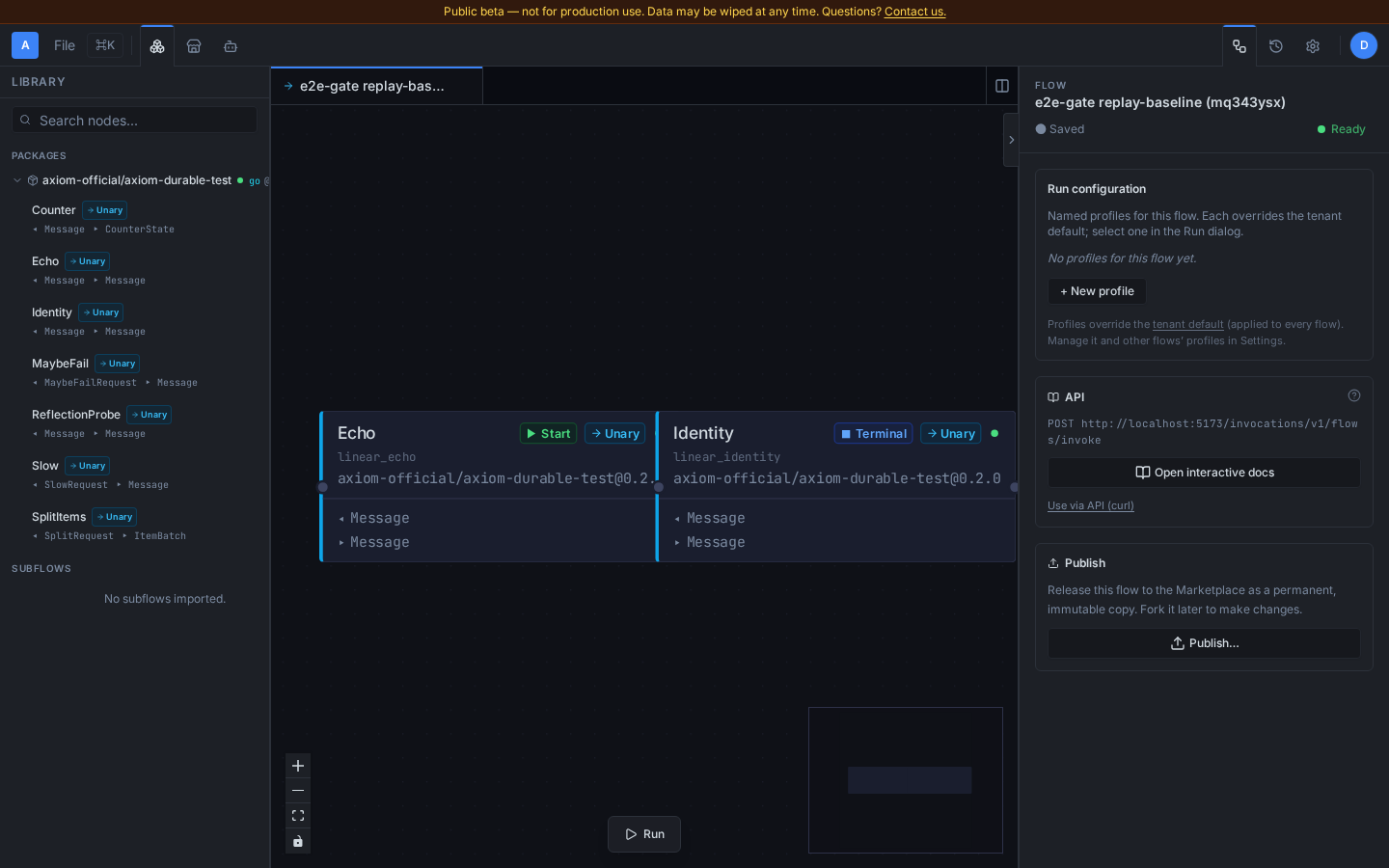
The screenshot above is an illustrative two-node flow (Echo → Identity) used to
show the canvas layout — the Library panel, inspector, and Run button. The
greeter package you built in the previous tutorial has a single Greet node,
which is already a valid flow on its own (it is both the entry and terminal
node); you do not need a second node to run it.
An edge means "the source node's output message becomes the target node's input message". The editor checks type compatibility as you connect:
- If the output message's fields don't line up with the input message's fields, the edge turns amber — a type warning. Click the amber edge to map source fields to destination fields. Type warnings must be resolved before the flow can run.
- A pipeline node can only connect to another pipeline node; the editor refuses the connection otherwise.
Before a run is allowed, the flow must also have valid topology:
- exactly one entry node (no incoming edges) — its input message defines what you send when running the flow;
- at least one terminal node (no outgoing edges) — in a linear flow like this one, the last node's output message is the flow's result;
- no cycles, and every node reachable from the entry node.
A single node on the canvas is already a valid flow: it is both the entry node and the terminal node.
Run the flow from the editor
Click Run at the bottom-center of the canvas. The button is disabled while topology errors or unresolved type warnings remain — hover it to see exactly what to fix. In the Run Graph dialog:
- Fill in the input form. It shows one control per field of the entry node's input message.
- Leave Debug Mode on (the default for unary flows) to watch execution node-by-node on the canvas; switch it off to just wait for the result.
- Click ▶ Run.
The dialog closes and execution plays out on the canvas. The result appears in the result panel docked below the canvas — its Output tab shows the terminal node's output message, and errors surface there too.
Two warnings can appear in the dialog before you run: a topology error, and
a list of secrets that nodes in the flow require but you haven't registered
yet — see Manage secrets in a flow. The
dialog also shows the flow type (Unary — single request/response — or
⚡ Pipeline — streams frames via SSE), a Debug button that runs with
breakpoints (Debug a flow), and Use via API,
which generates a curl command for the same run
(Invoke a flow via the API).
What happens when you run
Clicking Run compiles and invokes the flow in one step. The platform compiles your flow into a compiled artifact — validating every edge's type compatibility and resolving every node placement — and then starts an execution of that artifact. Each run is an execution with its own execution ID; past executions are listed on the Executions page (history icon in the header). See Execution model for unary vs pipeline execution and durability, and The type system for how edge compatibility is checked.
Next steps
- Invoke a flow via the API — call the flow you just
built with
curlor a generated client. - Nodes, packages, and flows — the mental model behind what you just did.
- Debug a flow — breakpoints, stepping, and live state inspection in the editor.